Client plans
The programs you enrol clients into — a fixed length, an expiry date, and what happens when one lapses.
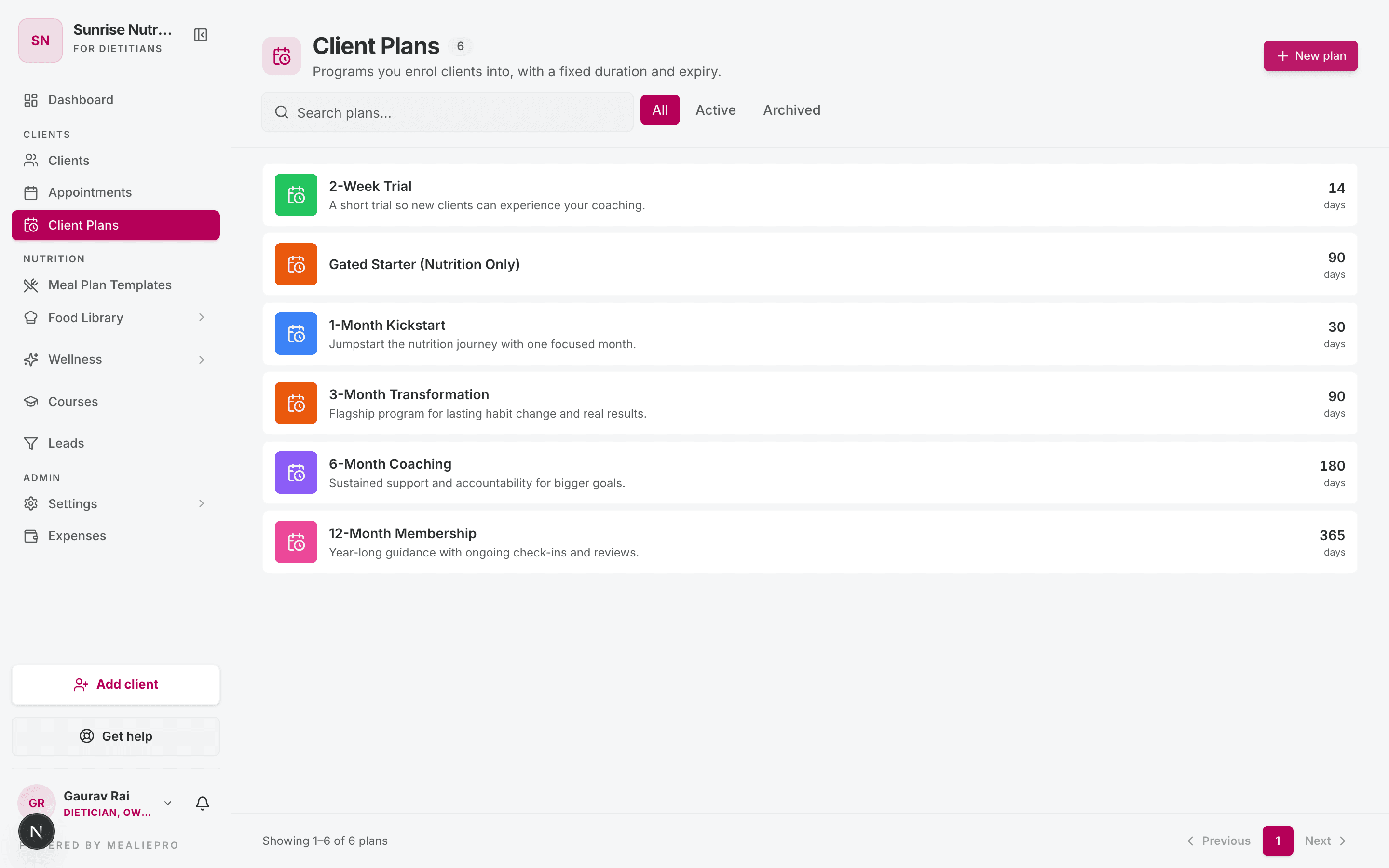
A client plan is a program you sell: a name, a length in days, and an expiry date. A "3‑Month Plan" is a 90‑day plan. You build each one once, and from then on it's a thing you enrol clients into.
This is not your subscription. Client plans are what you sell to your clients. Your own subscription to the product is Settings › Plan & Billing. Two different things with similar names — worth getting straight before you read on.
Open Client Plans in the sidebar, under Clients.
1. Create a plan
Click New plan. There's not much to it, which is the point:
| Field | Notes |
|---|---|
| Name | What you call it — e.g. 3‑Month Weight Loss. Clients see this. |
| Description | What the program covers. Optional. |
| Duration (days) | The length. 90 for a three‑month plan. This is what the expiry date is computed from. |
| Colour and icon | Cosmetic — makes plans easy to tell apart at a glance. |
| Courses | Optionally attach courses. Anyone enrolled in this plan gets them. |
Save, and the plan joins your reusable library.
2. Find and organise plans
Search by name, and filter by All · Active · Archived.
Archive rather than delete. Archiving retires a plan from new enrolments while leaving every client's existing history intact. Deleting a plan a client was enrolled in would take their record with it — so archive is almost always what you want.
3. Enrol a client
Two ways in:
- During onboarding — the last step of the add‑client wizard is the plan picker. Pick one, set a start date, and it previews the expiry it computes.
- Later, from their profile — open the client's Membership tab and use Assign a plan.
The Membership tab is also where you check where someone stands: which plan, when it started, when it runs out.
4. What happens when a plan expires
This is the part worth knowing before it happens to a client.
When a plan reaches its expiry date, the client is gently paused rather than cut off:
- Their food log goes read‑only — they keep access to their history, they just can't add new entries.
- You get notified, so a lapse doesn't pass silently.
- Nothing is deleted.
Renew from the client's Membership tab whenever you're ready, and they pick up where they left off.
Tip: the dashboard surfaces plan alerts for enrolments about to expire. That's the place to catch a renewal before the client hits a read‑only food log, rather than after.
Common workflows
"Set up the three packages I actually sell"
- Client Plans → New plan → 1‑Month Kickstart, 30 days.
- Repeat for 3‑Month Plan (90 days) and 6‑Month Transformation (180 days).
- Give each a distinct colour so they're scannable in a list.
- From now on, every new client gets one at the last step of onboarding.
"A client's plan ran out and they want to continue"
- Open the client → Membership tab.
- Assign the plan again with a new start date.
- Their food log unlocks; their history was never touched.
"I've stopped selling a package"
Filter to Active, open the plan, and archive it. It disappears from the enrolment picker; everyone currently on it keeps their enrolment and their history.
What's next
- Client onboarding — where most enrolments actually happen.
- Courses — bundle structured content into a plan.
- Settings › Plan & Billing — your own subscription, not your clients'.