Resources
Your library of articles, PDFs, videos and links — what staff can do today, and which resources clients see.
Resources are the educational material that you give clients. Examples: a PDF on portion sizes, a video on meal prep, or a useful link. When a resource is in the library, a client can find it again later. They do not need to search back through a chat.
Open Resources in the sidebar, under Coaching. The page subtitle is "Educational content library and assignments".
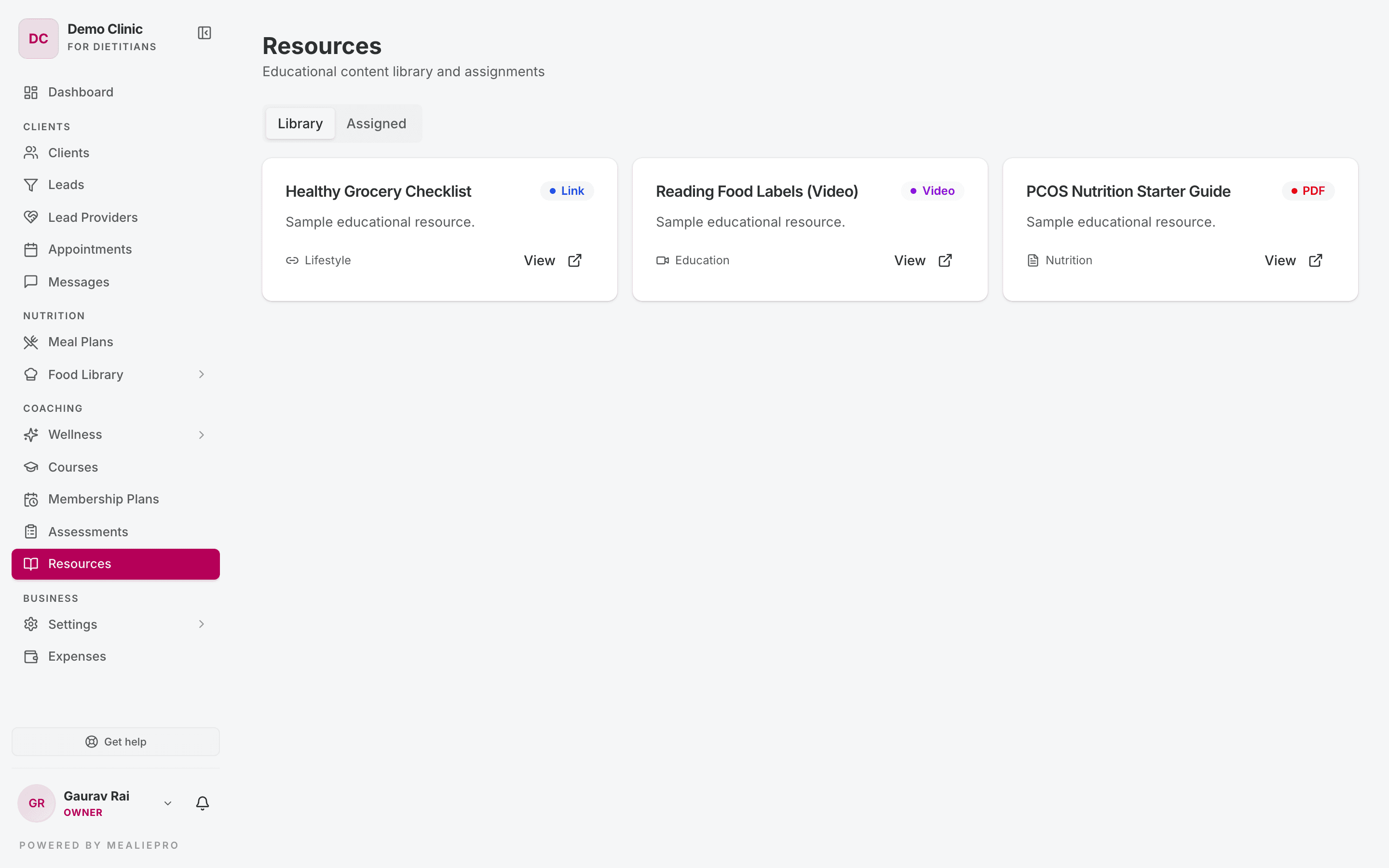
The page
The page has two tabs:
| Tab | What it shows |
|---|---|
| Library | Every resource in your practice. Each card shows the title, description, category and type. Click View to open the resource. |
| Assigned | Which resources went to which clients, and when. A resource that went to every client shows All Clients. |
Each resource has one of four types:
| Type | What it is |
|---|---|
| Article | Written content. |
| An uploaded file. | |
| Video | A video file or link. |
| Link | An external web address. |
What you cannot do in the app yet
The staff page is read‑only. It has no button to add a resource and no button to assign one.
| Task | Available in the app? |
|---|---|
| See the library | ✓ Yes |
| See who got what | ✓ Yes |
| Add a resource to the library | ✗ No |
| Assign a resource to a client | ✗ No |
| A client opens a resource | ✓ Yes, in the client portal |
If you have handouts to add, ask us through Get help at the bottom of the sidebar.
Tip: To share a PDF or a video yourself today, put it in a course. A course with one PDF chapter works as a handout, and you can enrol clients yourself.
Which resources a client sees
A client sees three groups of resources:
- Every resource that is marked public.
- Every resource assigned to that client.
- Every resource assigned to All Clients.
Important: A new resource is public unless someone changes it. So most of your library is visible to all your clients.
What clients see
The client page is at /my/resources. It shows a card for each resource, with an Open button. If there is nothing to show, the client sees "No resources assigned yet".
The client portal has no sidebar item for Resources. A client can open the page only from a direct link. The client's membership plan must also include Resources — see Membership plans.
Who can see this page
| Tab | Default roles |
|---|---|
| Library | Owner, Admin, Dietician, Nutritionist, Coach |
| Assigned | Owner, Admin, Dietician, Nutritionist, Coach |
The Receptionist role cannot load either tab. If a role has no access, the tab shows an error.
What's next
- Courses — structured material that you can build and share in the app.
- Assessments — questionnaires that you build and send in the app.
- Messages — another way to send something to a client.
- Client portal — what clients see.